🔒 This service is available for all plans.
🔒 The information in this section applies only to Admin account users
By connecting Facebook Messenger to SleekFlow, you can manage Facebook Page messages directly from your SleekFlow Inbox. You can also use Facebook Messenger in automation and messaging workflows, such as replying to customer messages, assigning conversations to teammates, setting up automated replies for Facebook post comments, and sending broadcasts using Facebook’s one-time notification feature.
You can connect multiple Facebook Messenger channels to your SleekFlow account.
Before you start
Before connecting Facebook Messenger to SleekFlow, make sure you have the following:
- A Facebook Page
- Full access and control to the Facebook Business Manager / Business Portfolio that manages the Facebook Page
- Permission to manage the Facebook Page you want to connect
If your Facebook Page has not been added to Facebook Business Manager yet, complete the setup below before connecting it to SleekFlow.
Add your Facebook Page to Facebook Business Manager
Your Facebook Page must be added to Facebook Business Manager before you can connect it to SleekFlow.
To add your Facebook Page to your business portfolio:
- Log in to Meta Business Suite
- Go to Settings
- Click on “Pages” under “Accounts”
- Click + Add.

- Select Add an existing Facebook Page.

- Paste your Facebook Page URL.

- Select the Facebook Page you want to add.

- Click “Next”.
- Review the people who have access to the Page.
- Click “Next”.

- Select the checkbox to accept the terms.
- Click “Add Page”.

Once the Page has been added, you can continue with the connection setup in SleekFlow.
Step-by-step guide
Once you have completed the checklist above, you can follow the steps below to connect to your Facebook Messenger channel to SleekFlow:
- Click the
 icon on the left navigation bar to go to the “Channel” page
 - Select “Facebook Messenger”
- Click “Connect” on the top right corner of the page

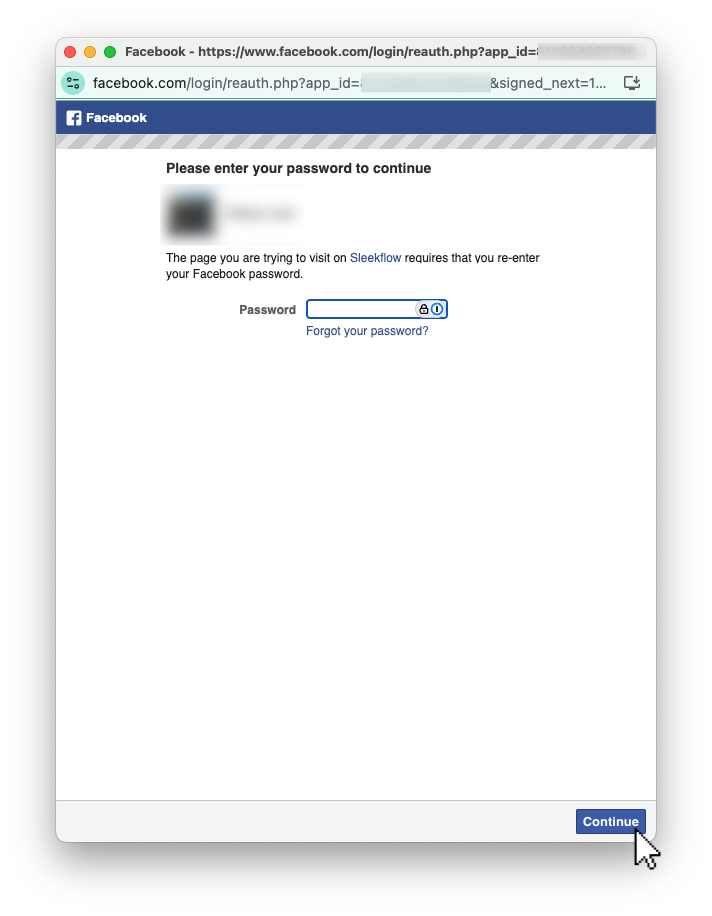
- A pop-up window will appear. Enter the password to sign in to your Facebook account. Then click “Continue”.
- Select the Facebook Business Portfolio and the Facebook Page you would like to connect

- Select the Facebook page you would like to connect to SleekFlow. Then click “Continue”.

- Review the access granted to SleekFlow. Click “Confirm”

- Once the page is successfully connected, you will see a success page. Click “Finish”

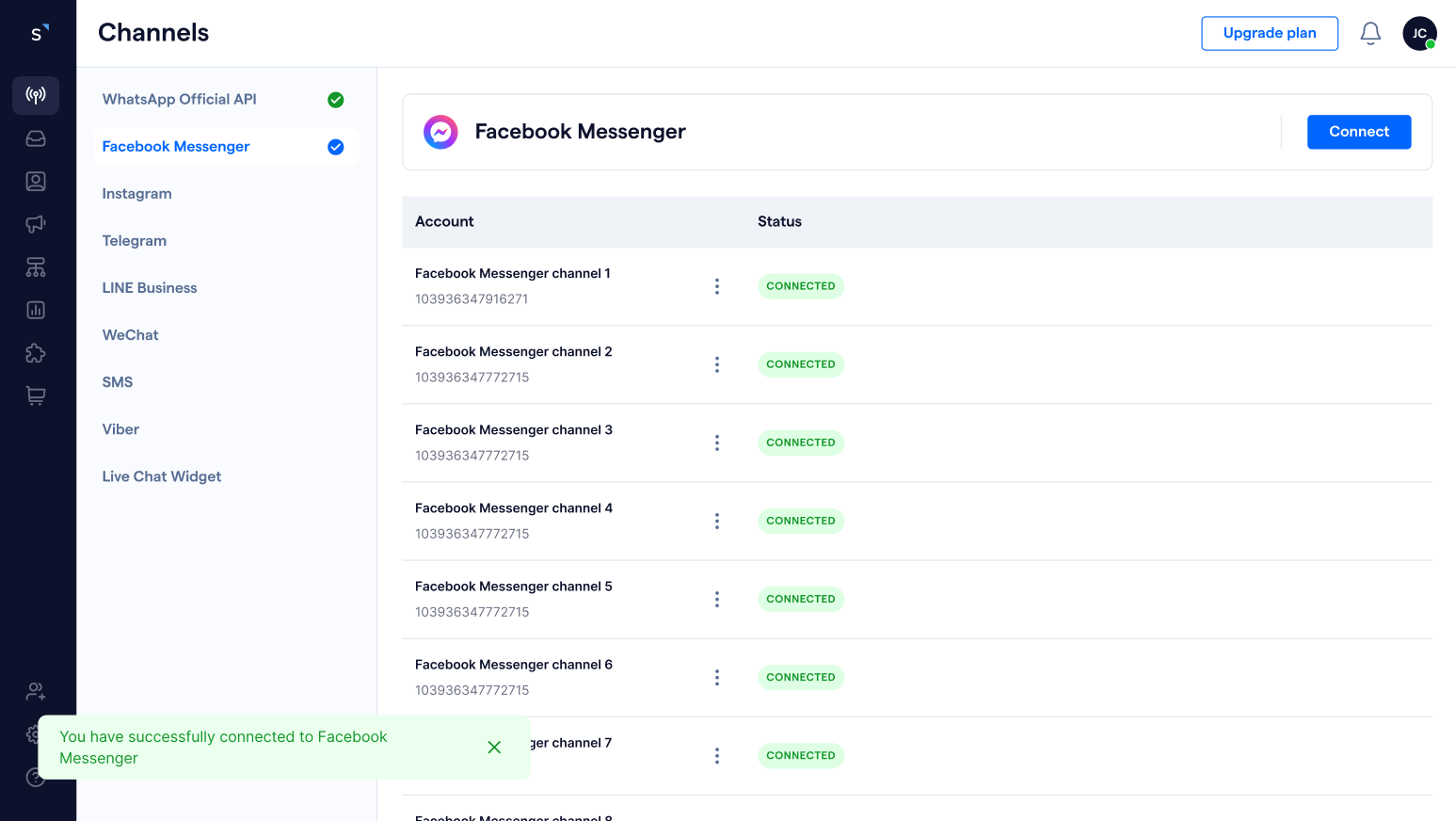
- Once your Facebook Messenger is successfully connected, you will be redirected to the Facebook Messenger channel dashboard, and a success message will appear at the left bottom of the screen.