


The information in this section applies only to Admin account users
Already have a WhatsApp Business API account?
To migrate an existing number to SleekFlow, visit this Help Center article: Migrate your WhatsApp Business API account to SleekFlow
Want to connect your own number to the WhatsApp Business API?
To connect a WhatsApp Business API account with an existing number, visit this Help Center: Connecting your WhatsApp Business API account
Applying for a WhatsApp Business API account
Unlike WhatsApp Business App and WhatsApp Personal App, WhatsApp Business API accounts can only be applied for through official Meta Business Solution Partners (BSP) like SleekFlow. To apply, you will require the following:
- A personal Facebook account with "Full Access Rights" in Facebook Business Portfolio. Check if you have full access rights here.
- A completed Business Info page in Meta Business Portfolio (previously known as Facebook Business Manager)
-
A mobile or landline phone number capable of receiving calls or SMS from the United States.
Applying for Meta Business Portfolio verification
Meta Business Portfolio verification
To ensure a smooth connection when connecting your number to Meta, make sure to prepare your credentials in advance, and follow Meta’s setup guidelines to meet their verification standards.
If you are planning to apply for an Official WhatsApp Account (OBA) or looking to send broadcast messages to more than 250 customers per day, you are also required to complete an additional Facebook Business Verification on top of applying for a WhatsApp Business API account. To complete your Facebook Business Verification, you will need:
- A business website with a domain that begins with https:// (e.g. https://abccompany.com)
-
The following documents with a matching business name and address printed on the document in the same language
- A valid Business Registration / Certification of Incorporation
-
Documentation issued within 3 months for business name and address validation. The required documents are based on your contact method as outlined in the table below.
💡 Official WhatsApp Business Accounts (OBA) are WhatsApp Business API profiles with a blue tick
What is a free WhatsApp number from Meta?
Meta provides eligible business users with the ability to claim up to two free WhatsApp business phone numbers, also known as "555 numbers". These numbers are intended for quick onboarding and testing of WhatsApp Business API features and behave similarly to standard paid numbers, with a few key distinctions:
- US-based format: These numbers have a United States country calling code (+1) and use the "555" area code.
- Instant verification: Free numbers are verified automatically and do not require additional proof.
- Non-transferable: These numbers cannot be migrated to another WhatsApp Business Account (WABA) later on, so they are not suitable for long-term usage or permanent setups.
💡 Please note the WhatsApp display name must be approved before it can start sending messages.
Step-by-step application guide
ℹ️ Tips:
For additional guidance, please refer to our Help Center article on Troubleshooting your WhatsApp Business API channels, or reach out to our Customer Support team at cs@sleekflow.io. We’re here to help!
The application process will take approximately 10–15 minutes. To apply for a new WhatsApp Business API account:
- Sign in to your SleekFlow account and go to Channels by clicking on the
 icon on left sidebar
- Go to the WhatsApp Business API channel settings page, and click "Connect" on the right side of the screen.

- Under "Select how would you connect", select "Get a free WhatsApp number provided by Meta".

- Click "Continue on Meta" to proceed

Please note that once your number is registered on WhatsApp Official API, you will NOT be able to:
- Access the WhatsApp Group function to send messages in group chats
- Access this WhatsApp account outside of SleekFlow’s web & mobile app, e.g. WhatsApp Business App and WhatsApp Personal App
5. You will see a separate pop up window. Click “Continue with Facebook”, then sign in with the Facebook account that has full access right to your Meta Business Portfolio.
6. Read the permission that you will share with SleekFlow as shown on the screen. Click "Continue" to proceed. 
7. Choose “Use a display name with a virtual number instead” from the “Phone number” dropdown

8. If you already have a business portfolio, select it from the Business portfolio dropdown.
Under WhatsApp account, select “Create a WhatsApp account”, then skip to step 10.
9. If you don’t have a business portfolio, select “Create a Business portfolio” from the Business portfolio dropdown. Under WhatsApp Business account, select “Create a WhatsApp Business account”.
💡 WhatsApp Business Account (WABA) is the container for all your WhatsApp Business Profiles in Meta Business Portfolio (previously known as Facebook Business Manager). Please refer to this article to learn more.
10. To create a WhatsApp Business profile, please fill in the following details:
- Name: A private name for your internal staff to identify the account in Meta Business Portfolio
- Category: The industry that your business is in. Click the drop down list to choose one that best describes your business.
- Country/Website/Time zone: Fill in the follow informations about your business
After completing the information, click "Next" to continue. 
11. Confirm your WhatsApp Business display name to connect the free phone number to your profile.
Use the name customers see on your website or other branded materials. Meta may reject the display name if it doesn’t match your branding.
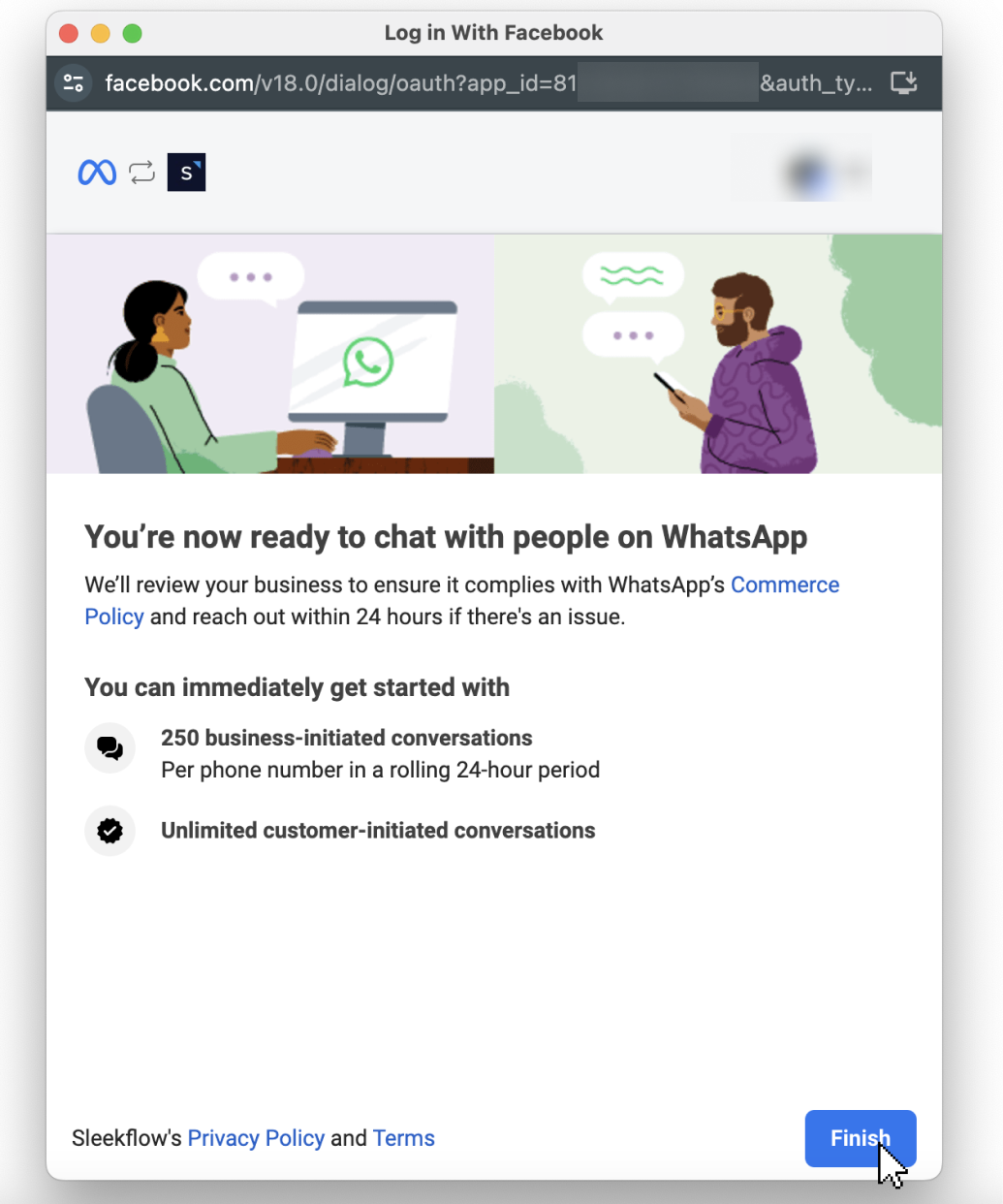
12. Your application is complete!
Click "Finish" to connect your WhatsApp Business account with SleekFlow.
The number of business-initiated conversations that you get depends on the Facebook Business Verification status of your Meta Business Portfolio (previously known as Facebook Business Manager)Facebook Business Manager. Check out this article to learn more about the steps to complete Facebook Business Verification.
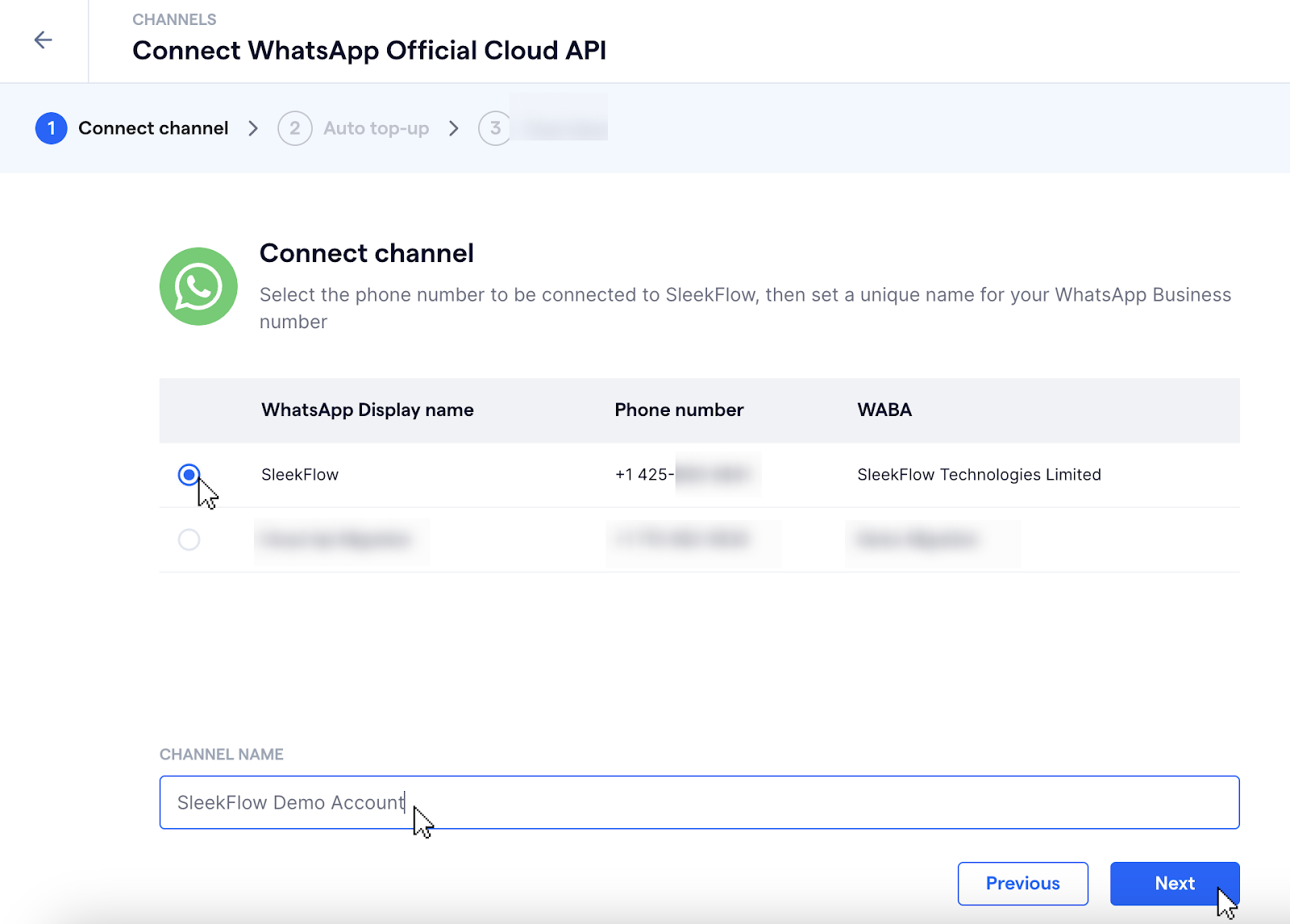
13. You will be redirected to back to SleekFlow. In this page, choose the WhatsApp business profile that you just created and fill in the "Channel name". The "Channel name" is private and can only be viewed by your internal staff and SleekFlow. Customers will only see the "Display name".
Click “Next” to proceed.
If you need help with completing the steps, reach out to our Customer Support team at cs@sleekflow.io. We’re here to help!
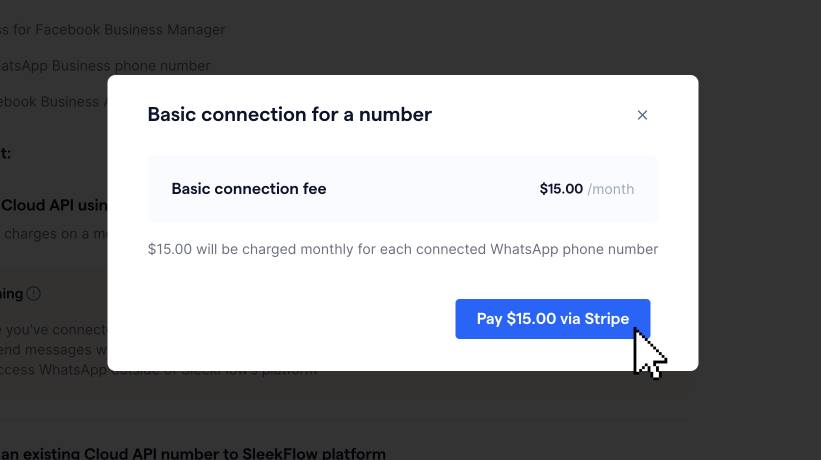
14. You will be prompted to purchase a WhatsApp Business API connection add-on via Stripe. The standard fee is your local currency value equivalent to US$15/month for each connected phone number.
ℹ️ Important: Free number vs. WhatsApp connection fee
Getting a free WhatsApp number from Meta is completely free of charge. Meta allows eligible businesses to claim up to two free numbers for testing and onboarding purposes.
However, a separate US$15/month fee applies for each WhatsApp channel connected to SleekFlow (including free numbers). This fee covers your WhatsApp Business API channel setup and is charged through Stripe.
If you’re on a Startup plan, you can connect up to 3 WhatsApp channels for free. The US$15/month fee applies to each WhatsApp channel connection if you're on a Pro, Premium, or Enterprise plan.
15. Click “Pay $15.00 via Stripe” to proceed to payment.
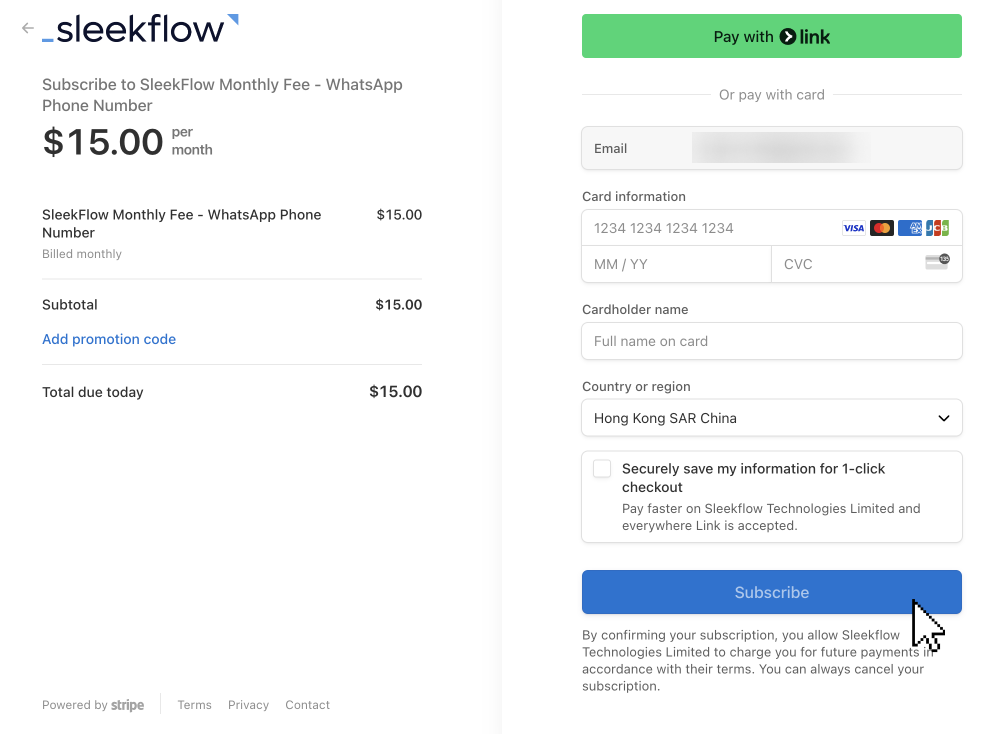
16. You will be directed to Stripe to proceed with the payment. Enter your credit card information and click "Subscribe" to complete the payment.
17. Once payment is complete, you will be redirected back to SleekFlow's WhatsApp Official API connection page
18. You have successfully connected your WhatsApp Business API Account and Business Profile to SleekFlow! Please review the details of your account, then click "Back to WhatsApp settings" to return to the "Channels" page.
