


Note: Message opt-in feature is only available in SleekFlow 2.0 for WhatsApp Business API channels via Cloud API.
What is “Message opt-in” and how does it work?
Message opt-in is a feature available for WhatsApp Business API users on SleekFlow.
When you send a free-form message after the 24-hour WhatsApp customer service window has closed, WhatsApp does not allow the message to be delivered directly. To help you continue the conversation compliantly, SleekFlow automatically pairs your free-text message with a required opt-in template.
In Inbox, you will see a composer banner explaining that your message will be sent together with a required opt-in template. You can click “Learn more” in the banner to open an educational modal with more context about how message opt-in works and why the template is required.
When you send the message, the opt-in template is delivered to the customer first. Your original free-text message is placed in a “Queued” state in the conversation. This means the message has been queued, but has not been delivered to the customer yet.
Once the customer clicks “Read more” or otherwise engages with the opt-in template, SleekFlow removes the queued placeholder from the conversation. The same follow-up content is then resent automatically and appears in the conversation as a new delivered message.
If the customer does not respond to or engage with the opt-in template, the queued free-text message will not be delivered.
This flow helps reopen the conversation window before sending your free-text follow-up, so your message can be delivered in line with Meta’s WhatsApp messaging policy. This is not a sending error. The “Queued” state shows that SleekFlow is waiting for the customer’s opt-in action before delivering the message.
Note: Message opt-in is designed to help you continue conversations compliantly when the 24-hour WhatsApp customer service window has closed. The opt-in template must be sent and engaged with before the queued free-text message can be delivered.
Configuring the “Message opt-in” feature
To configure the “Message opt-in” feature, you will first need to go to the WhatsApp Official API page. You can follow the steps below to go to the WhatsApp Official API page:
- On the left navigation bar, click on the
 icon
icon - You will be redirected to the Channels page. Click on “WhatsApp Official API" on the menu on the left.
- Once you have landed on the “WhatsApp Official API” page, click on the “Message opt-in button” tab

- In the “Message opt-in” tab, you can select the Meta Business Account (previously known as Facebook Business Account) to view a list of WhatsApp Business API accounts (WABAs) and check the current status of their opt-in settings. Each WhatsApp Business API account (WABA) can be configured individually to use the "Message opt-in" feature, allowing you to control how it applies to different accounts.
The configuration you set for the "Message opt-in" feature will automatically apply to all channels associated with the selected WABA. Once an opt-in setting is configured for a specific WABA, it will govern the opt-in behavior across all connected WhatsApp channels in that account, ensuring consistent application across customer conversations.
Turning on “Message opt-in” feature
Before turning on the opt-in feature, you must have at least 1 approved template message with only 1 quick-reply button. You can refer to this Help Center article to create a template message.
You can follow the steps below to enable the “Message opt-in” features for your WhatsApp Business account:
- In the “Message opt-in” tab, find the WhatsApp Business account for which you would like to enable the “Message opt-in” feature
- Click on the “Message opt-in status” toggle next to the WhatsApp Business account

- Once it is turned on, a dialog will appear and you will be asked to choose a template message for this channel’s "Message opt-in" feature
- Under the “Message template field, click on the “Select opt-in template”
- Select the template you want to use

You can choose templates that meet all of the following criteria:- Templates with one quick reply button
- Templates without any variables
- Templates without attachments (no media or files)
- If the templates you have do not fit all the criteria above, it will return as no results found.
You can refer to this article to learn more about creating your WhatsApp template message
- Once you have selected a template for your “Message opt-in”, you can preview the template before confirming the configurations
- You can click “Confirm” at the bottom right corner of the dialog to save the changes

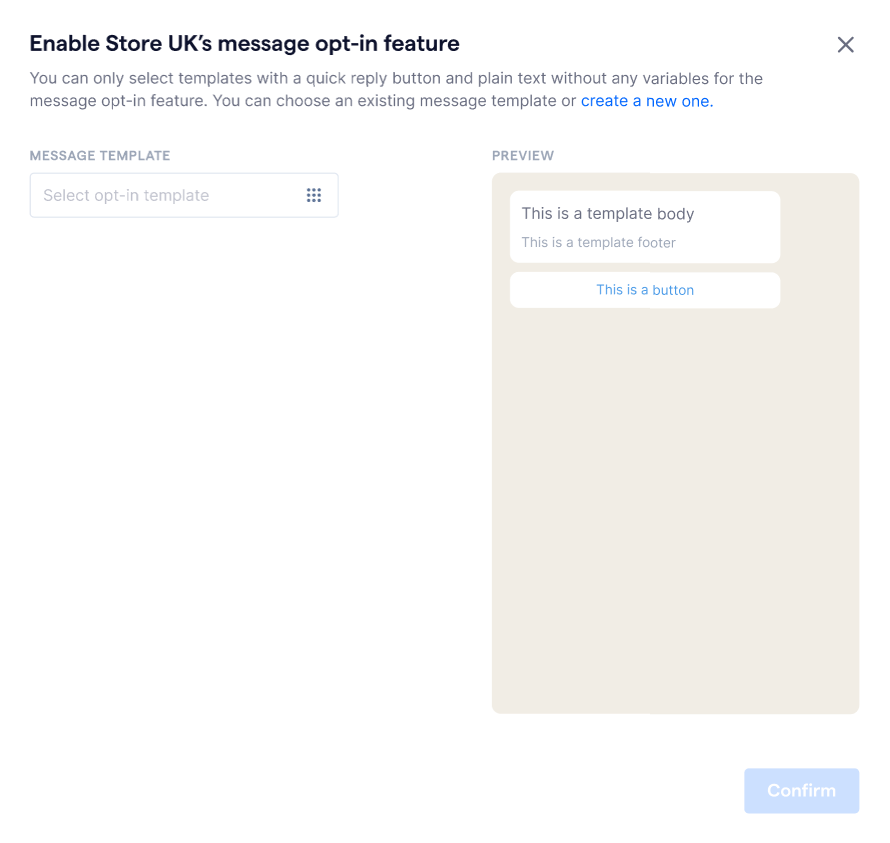
The "Message opt-in" feature is now set up! You can send free-form messages to your customers, and this feature will automatically send the "Message opt-in" templates for you.
Turning off “Message opt-in” feature
You can follow the steps below to turn off “Message opt-in” feature for your WhatsApp Business accounts:
- Under the WhatsApp Official API channel page, click on the “Message opt-in button” tab
- Find the WhatsApp Business account for which you would like to turn off the “Message opt-in” feature
- Click on the “Message opt-in status” toggle next to the WhatsApp Business account

- Once toggled off, the “Message opt-in” feature will be turned off for the WhatsApp Business account
Edit template message for “Message opt-in” feature
You can choose another template message for your "Message opt-in" feature by following the steps below:
- Under the WhatsApp Official API channel page, click on the “Message opt-in” tab.
- Find the WhatsApp Business account for which you would like to edit the template message.
- Click the
 button to edit the template.
 - Once clicked, the template edit dialog will appear.
- Under the “Message template” field, click on the field or
 icon to select a template.
 - You will be prompted to choose another template.
- After confirming and previewing the template, click “Confirm” to save the changes.
Using the Message opt-in feature in Inbox
When you reply to a customer after the 24-hour WhatsApp customer service window has closed, you cannot send a free-form message directly. If Message opt-in is enabled for the WhatsApp Business account, SleekFlow helps you send a required opt-in template before delivering your follow-up message.
In Inbox, you will see a banner above the composer explaining that the conversation is outside the 24-hour window. The banner also lets you choose how to continue the conversation.
Send an opt-in message
Use this option when you want SleekFlow to send the configured Message opt-in template and automatically resend your free-text message after the customer engages with the template.
To send an opt-in message:
- Go to Inbox and open the WhatsApp conversation you want to reply to.
- Enter your free-text message in the composer.

- Review the banner above the composer. It explains that SleekFlow will send the opt-in template first.
- Click “Send opt-in message”.
After you send the opt-in message, SleekFlow sends the configured opt-in template to the customer first. Your free-text message appears in the conversation with a “Queued” status.

The “Queued” status means the message has been queued, but has not been delivered to the customer yet. SleekFlow is waiting for the customer to engage with the opt-in template before sending your free-text follow-up.
Once the customer clicks “Read more” or otherwise engages with the opt-in template:
- The queued placeholder is removed from the conversation.
- SleekFlow automatically resends the same follow-up content.
- The message appears as a new delivered message in the conversation thread.

If the customer does not engage with the opt-in template, the queued message will not be delivered.
Note: The “Queued” status is not a sending error. It is part of the Message opt-in flow and helps keep your WhatsApp messages compliant with Meta’s messaging policy.